

You’ve come home from a full day of hectic with the lower battery percentage and you put on your iPhone for charging. However, you’ve noticed that even after a few hours of consistent charging, your Apple iPhone is still stuck at 80 per cent charging out of nowhere. If you’re also getting the same iPhone Stopped Charging at 80% issue then don’t worry.
It’s one of the most common problems among iPhone users to experience charging issues where the battery percentage gets stuck at a specific level. In that case, some of the older iPhone models might run out of battery charge due to ageing.
So, this is understandable. But if your iPhone is relatively new or you hardly use it daily then it might need to replace the battery. However, the iPhone not charging more than 80% isn’t a battery issue at all. Irrespective of the iPhone model you’re using, Apple is the one responsible for this thing.
show
Why Does My iPhone Go Beyond the 80% Charging?
Ways to Fix iPhone Stopped Charging at 80%
Force Restart Your iPhone
Turn Off Optimized Battery Charging
Wait for Your iPhone to Cool Down
Avoid Charging Overnight
The Charger Becomes Faulty
Check for Software Updates
Shut Down Your iPhone While Charging
Remove the iPhone Case or Cover
Try Performing a Factory Reset
Visit the Apple Service Center
Why Does My iPhone Go Beyond the 80% Charging?
Well, this particular thing might be a software or hardware feature that has been resisting the battery to complete its charging process. So, why is it happening & what’s the benefit of it? Let’s check the reasons and how you can bypass this thing to charge your iPhone fully 100%.
Apple generally spends millions of dollars and enough time in its R&D to achieve new features. With the iOS 13 version or later, Apple included the ‘Optimised Battery Charging’ feature to slow down the rate of battery ageing by reducing the charging time.
So, your iPhone now uses an on-device machine learning function to understand your daily charging routine (pattern) to work things in your way. After completing 80% of battery charging, your iPhone automatically activates the Optimised Battery Charging feature [only when your iPhone assumes that it will be connected to a charger for a long period by understanding your usage pattern].
This move has been added to increase the lifespan of your iPhone’s battery. Sometimes your iPhone may get slightly warmer during the optimised battery charging session until it gets 100%. Even if your iPhone gets enough warm during normal charging, the iOS may restrict the charging limit up to 80 per cent until the device gets cool down.
Ways to Fix iPhone Stopped Charging at 80%
Fortunately, there are a couple of ways to easily fix or avoid the charging stuck at 80 per cent on an iPhone. So, without further delay, let’s get into it.
Force Restart Your iPhone
It’s recommended to try force restarting your iPhone to clear out potential system glitches. Apple also recommends this method to avoid charging-related conflicts or battery-draining issues. To do so:
1. Press and quickly release the Volume Up button.
2. Press and quickly release the Volume Down button.
3. Press and hold the Side button.
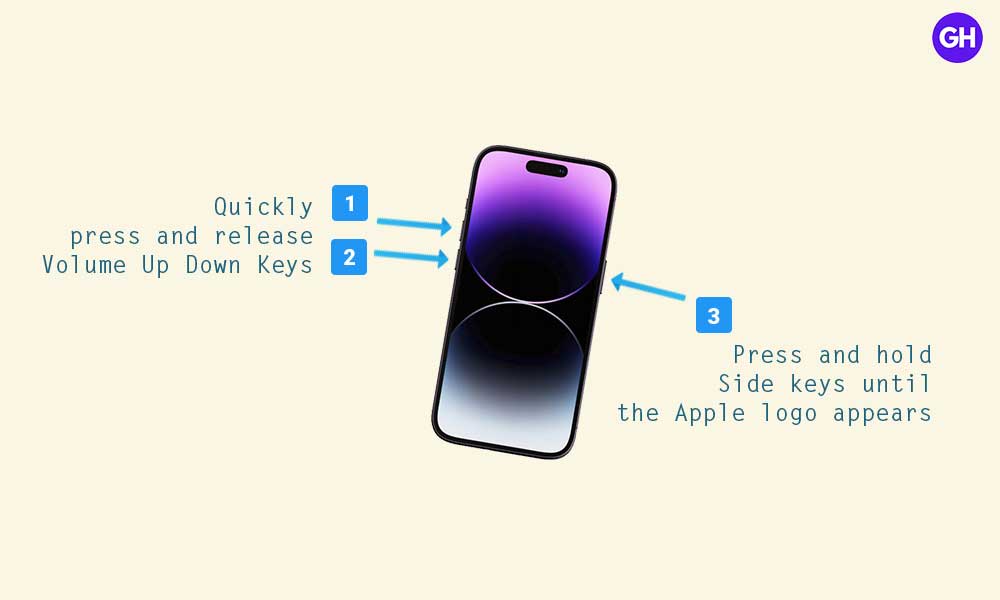
4. When the Apple logo appears, release the Side button.
5. Wait for the system to boot. It should fix any kind of temporary glitches with the system.
Turn Off Optimized Battery Charging
The second thing you should do is disable the optimised battery charging toggle on your iPhone to skip using this feature. If you’re not interested in battery charging optimisation then follow the steps below.
With iPhone 14 models and earlier:
- Navigate to Settings > Battery > Battery Health & Charging.
- Turn Off the Optimised Battery Charging toggle.

- If prompted, you can select Turn Off.
- Otherwise, you can also choose Turn Off Until Tomorrow (if you want to disable it temporarily).
With iPhone 15 models or newer:
- Go to Settings > Battery > Battery Health & Charging.
- Select Charging Optimisation > Choose None.
- Otherwise, you can also try any of the options below whatever you prefer:
- Optimised Battery Charging
- 80% Limit
- Once done, reboot your iPhone.
Get the latest tips and guides delivered to your inbox
Or click on this link to subscribe email newsletter. We also hate spam! You can unsubscribe at any time. Check to follow.it Privacy and Our Privacy.
Wait for Your iPhone to Cool Down
You should also keep your iPhone in another place for a couple of minutes at least to cool down easily. Sometimes an overheating device while charging the battery might also force the system to stuck charging at 80% to improve battery longevity.
Avoid Charging Overnight
Make sure to put your iPhone charging for overnight which might cause stuck charging at 80 per cent during the night time. The system follows the usage pattern of the iPhone overnight and prevents charging more than 80%. The device will automatically again start charging in the early morning to make it full.
The Charger Becomes Faulty
It might also be possible that your stock charging adapter or cable becomes faulty. The chances are high that your corrupted or physically damaged charger is conflicting with the iPhone charging. This might also be a reason for charging stuck issues most of the time.
So, you can try using another stock charger to keep charging your iPhone. In case, the charging works fine and your iPhone gets fully charged to 100% without any additional delay or conflicts then you’re good to go.
If the charging is stuck again and again even with a different stock charger then make sure to get your iPhone checked by some professional regarding the charging port.
Check for Software Updates
You can update your iPhone or iPad to the latest version of iOS or iPadOS wirelessly. Generally, the iPhone receives an OTA update notification whenever a new software update becomes available for your specific model.
However, if you somehow skipped it or haven’t received a notification yet, check the following steps to do that:
- Ensure your iPhone is charged more than 50% of its battery. Otherwise, plug your device directly into a power source.
- Now, connect your iPhone to the active Wi-Fi network for better connectivity.
- Go to Settings > General > Software Update.
- If multiple software updates are available, select the one you want to install.
- Tap on Install Now > Enter your device passcode.
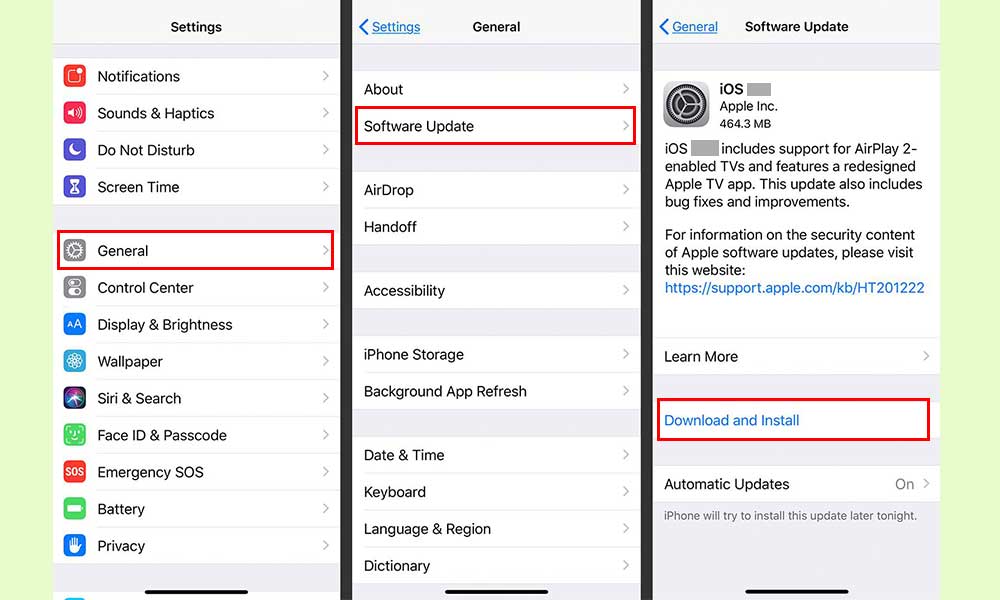
- If you see Download and Install, tap on it > Enter your device passcode.
- Then tap on Install Now and wait for it to complete.
- Once done, your iPhone will automatically boot into the system.
- It may take some time so wait for the same.
Shut Down Your iPhone While Charging
You can try to power off your iPhone during the charging period to avoid any kind of networking and application interruptions. As we all know background running apps or background data bandwidths can eventually consume plenty of battery juice even if you’re not using the iPhone actively.
Remove the iPhone Case or Cover
If you’re using a wireless charger for your iPhone and using any of the case or cover then make sure to remove the case/cover to try charging again. It might also be possible that an incompatible case/cover is preventing the iPhone charge properly.
So, if your iPhone gets fully charged without having the case or cover then try using a compatible cover/case that supports wireless charging on iPhones.
Try Performing a Factory Reset
If the above workarounds didn’t help then ensure to perform a factory reset on your iPhone by following the steps below. Well, the factory reset will wipe out all data & user settings including saved Wi-Fi networks, etc. But you’ll be able to fix multiple issues or system glitches in most scenarios.
Do keep in mind that you’ll have to take a full data backup and Wi-Fi passwords before performing the factory reset method. Otherwise, you will lose important data like documents, contacts, or media files (if not saved in the cloud). To do so, check out the following steps:
- Go to Settings > General > Transfer or Reset iPhone.
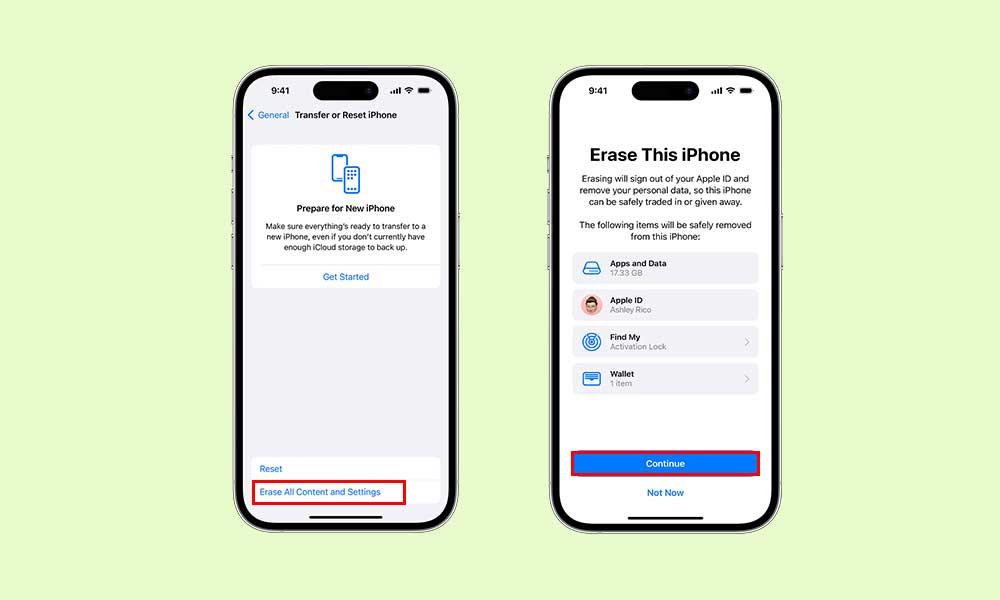
- Next, tap on Erase All Content and Settings.
- If prompted, enter the device passcode or Apple ID password.
- Then tap on Continue to confirm and proceed with the factory default reset.
- It’ll completely wipe out all of your data & settings from the iPhone.
- Wait for a few minutes to complete the reset process.
- The booting process may also take a few minutes after reset.
- Then your iPhone will reboot automatically.
- Now, complete the initial home screen setup.
- You’re done and the charging stuck at 80% issue should be fixed.
Visit the Apple Service Center
As a final workaround, you should carry your iPhone to the nearest Apple Service Center to get it checked thoroughly and repaired (if required). We suggest you not try playing with the charging port by yourself on your iPhone to avoid any kind of further damage to the charging port.
For more news updates and guides, follow this blog. If you have any queries just mention them in the comment section below, till then stay tuned.
You can also follow us on Google News and Telegram Channel for real-time notifications whenever we publish any post.
Follow us on social media – Twitter, Facebook, and Instagram. You can also subscribe to our newsletter for daily updates.
