

Once you lose or delete important files, nothing becomes more important to you than recovering them. File recovery can be troublesome if you have less knowledge of the approach. Remember unreliable data recovery methods or tools can miserably fail to perform successful recovery and might even corrupt your important files. In that scenario, the Remo Data Recovery Software for Windows plays a major role.
When you are looking to recover data from your computer or any external storage drive such as an external hard drive, SSD, USB, or memory card, choosing reliable data recovery software becomes very crucial. In order to help you choose the right data recovery software, we have tested the Remo File Recovery tool.
It’s a prominent solution under various data loss scenarios like file deletion or loss, corruption, formatting, etc. In this review article, you can find the few important features of Remo Recover that are notable along with its pros and cons. So, without wasting any more time, let’s jump into it.
Review of the Remo File Recovery Software
Remo Recover is one of the renowned tools of Remo Software. And it is designed with easy to use interface to recover more than 300 file formats. This file recovery software is free to download and safe to recover data from any storage drive.
Features of Remo Recover software that we found useful:
Here we’ve shared a couple of useful features or highlighted points that you should know about Remo Recovery software for Windows. Take a quick look below:
1. User-friendly tool:
Remo Recover software is designed with a user-friendly interface to recover deleted or lost files in simple clicks. This tool comes with self-explanatory instructions to make recovery easier under multiple data loss scenarios even for novice users.
2. Save Recovery session:
Remo Recover software has Save and Open Recovery Session feature. Using the Save Recovery Session, you can easily save the scanning data stopped at any point in time due to any reason.
Later you can restart the scanning process from the point where you stopped previously using the Open Recovery session.
3. Deep Scan:
Remo Recover has a Deep Scan feature that scans the drive sector by sector. Using this Deep Scan option, you can restore files under various complex data loss scenarios.
Such as formatting, corruption, emptied Recycle Bin, files lost after updating PC or resetting Windows 10, etc.
4. Supported file formats:
Remo File Recovery tool is specialized in recovering more than 300 file formats in simple steps. Using this tool, you can easily recover files of any format such as photos, videos, text documents, audio files, raw images, Office files, and many more.
5. Preview feature:
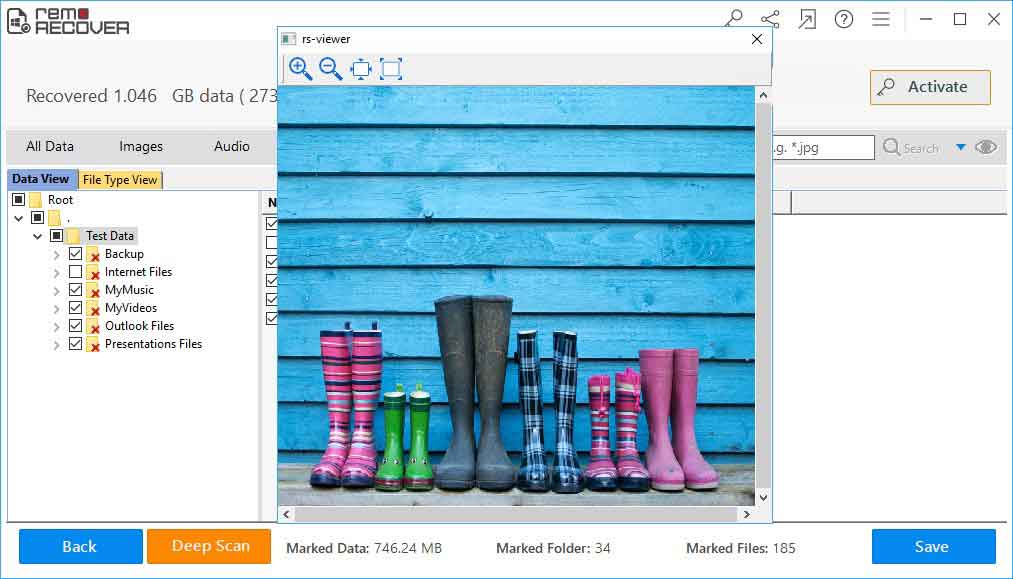
Remo File Recovery software allows you to preview the recovered files such as photos or videos for free. This feature helps to judge the recovery result even before you save the files to the desired location.
6. Read-only mode:
This file recovery software works with a read-only mode interface. Therefore, the tool safely recovers files from a computer or any external storage drives like a pen drive, SSD, memory card, external hard drive, etc, without harming the original content.
Moreover, the Windows recovery tool is free from any kind of viruses or malware attacks.
7. Prioritize Recovery:
Remo Recover software displays the recovery result in Data View and File Type View. Using these formats, you can select the files which you want to restore and thereby ignore the unnecessary files that are not important to you.
Moreover, you can even prioritize the recovery based on file types such as (.mov, .mp4, .png, .jpg, etc.), date and file size.
What are the Pros and Cons of Remo File Recovery software?
Pros:
1. Offers free software updates for 1 year.
2. Provides 24/7 free tech support to solve user queries.
3. It is compatible with the latest Windows 11 and 10.
4. Allows you to add new file formats to scan and recover.
5. Supports file recovery under various data loss scenarios.
6. Easily recovers files from different file systems like NTFS, exFAT, FAT32, FAT16, etc.
Cons:
1. Recovery speed is directly dependent on the data loss scenario.
2. Provides a free preview of the recovered files only for photos and videos.
How to Recover files using Remo File Recovery software?
1. Launch Remo Recover software and select the Recover Files option.
2. Select the drive from which you want to recover data. [If you are looking to recover data from the external drive, then connect it to your Windows system]
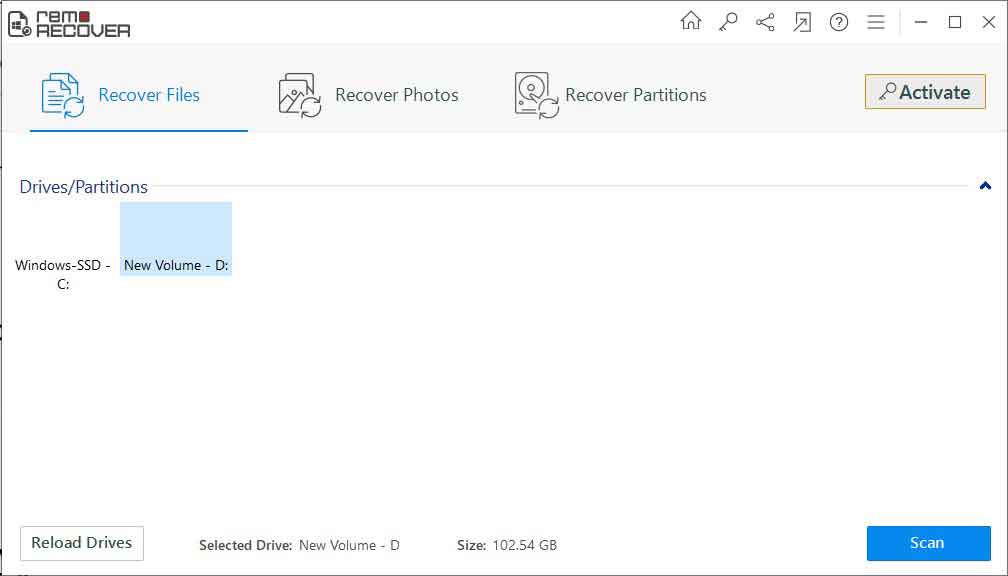 3. Now, click on the Scan button.
4. Once, the scanning process completes, you can select the files that you want to restore in a bulk.
5. Click on the Save button.
Supported File Types that can be recovered using Remo File Recovery software:
| File Formats | DOCX, XLS, PPT, TXT, RTF, HTML, PDF, ZIP, RAR, JAR, PST, PSD, etc. |
| Photo Formats | JPG, GIF, PNG, BMP, TIFF, CR2, NEF, ARW, SR2, ORF, RAW, DNG, etc. |
| Video Formats | AVI, MP4, MOV, MPEG, MPG, M4V, 3G2, 3GP, RM, WMV, OGG, etc. |
| Audio Formats | MP3, MP4, WAV, MIDI, M4A, AIFF, AIF, AIFC, RA, AMR, etc. |
Final Words:
Recovering files from a Windows computer or external storage drive can be difficult if you have not taken a proper backup previously. However, by using the Remo File Recovery software, the data can be restored in a few simple clicks. If you have lost data under any scenarios like formatting the drive, corruption, deletion, or emptying Recycle Bin, then Remo Recover is the right bet for you.
Join our Telegram Channel for more info. That’s it for now. For more news updates and guides, follow this blog.
If you have any queries just mention in the comment section below, till then stay tuned. You can also follow us on Google News or Telegram group for real-time notifications whenever Gadget Headline publishes any post.
