


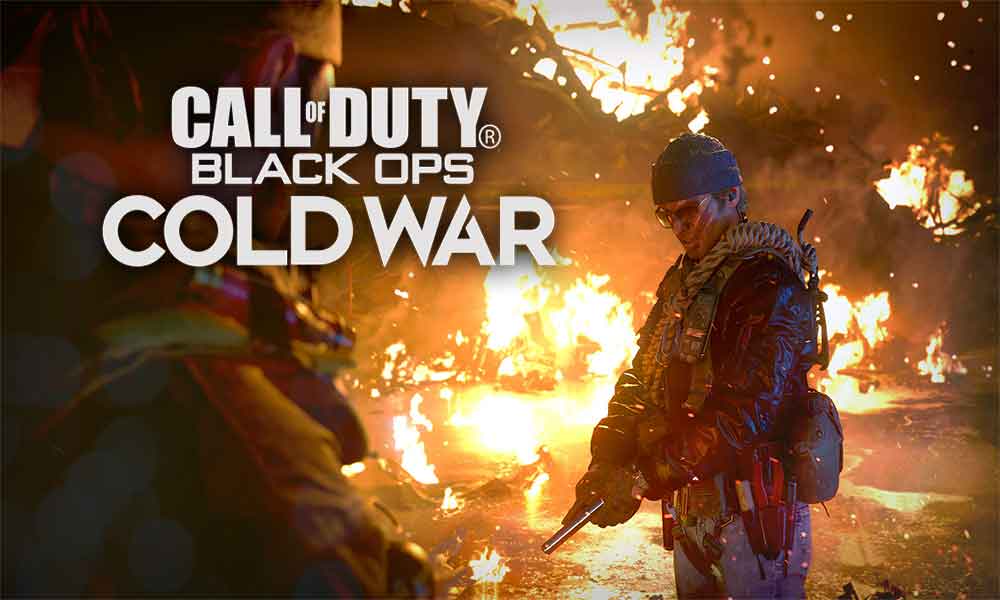
Call of Duty: Black Ops Cold War is based on a true story when a period of time in the second half of the 20th century. The rivalry between the United States and the USSR lead to World War III. The game is available on the platforms across PS4, Xbox One, PC, including the next-generation console. A number of players are reporting that they’re encountering the Call Of Duty Black Ops Cold War Black Screen Error.
If you’re also one of the victims and want to quickly fix this issue by yourself then stick to this post. Luckily there are a couple of fixes that should resolve the issue easily.
show
How to Fix Call Of Duty Black Ops Cold War Black Screen Error
Check DirectX Version
Update Windows Build and GPU Drivers
Scan and Repair Game Files
Adjust Game Settings (Fix Black Ops Cold War Black Screen)
How to Fix Call Of Duty Black Ops Cold War Black Screen Error
The main reason might be that your system might not be matching with minimum system requirements, which is quite necessary to run the game without a problem. Here are the minimum system requirements of the game:
- Windows 7 or higher 64-bit operating system.
- Intel Core i3-4340 or AMD FX-6300 processor.
- 80 GB of available hard disk space.
- 8 GB of RAM.
- GeForce GTX 660 2GB / GeForce GTX 1050 2GB or Radeon HD 7950 2GB graphics card.
- DirectX 11.
For more in-depth system requirement details, check here. To check what system configuration you have, follow the steps below:
- Visit Settings go to Start > Settings > System > On the left panel, click on About.
- Here you can see the PC specifications. Additionally, click on the System information on the right side > Check the graphics card information.
Check DirectX Version
- Press the Windows + R keys for Run dialog box > Type dxdiag and press Enter to open the DirectX Diagnostic Tool.
- Under the System and Display tab, you’ll find out all the hardware configuration-related info along with the DirectX version, DirectX hardware feature level version, etc.
Update Windows Build and GPU Drivers
Also, an outdated GPU driver can also cause the problem, so make sure you’ve updated the GPU drivers. To do that:
- Click on Start > Type Device Manager and click on it from the search result.
- Once the Device Manager interface opened, click on the Display adapters (arrow icon) to expand the drop-down list.
- Next, right-click on the graphics card > Select Update driver.
- Click on Search automatically for drivers.
- If there is an update available, it will automatically download and install the driver on the system.
- Once done, restart the computer and try running the game again.
Additionally, you’ll also have to check for Windows OS build updates.
- Click on Start > Settings > Update & Security > Check for updates.
- If there is any update available, click on Download and Install.
- Once done, restart your system to apply the changes.
[su_note note_color=”#dde2e5″ text_color=”#000000″ radius=”0″]Must Read:
- Call of Duty Black Ops Cold War Fatal Error – Fix
- Is There Any Tactical Sprint in Call of Duty Black Ops Cold War?
[/su_note]
Scan and Repair Game Files
Missing or corrupted game files can also be the reason for the black screen problem, so repair the damaged game files should work for you. Here’s how you do that:
- Launch the Blizzard launcher (Battle.net) > Click on Games and open the Black Ops Cold War game page > Click on Options > Choose Scan and Repair.
- Let the process complete and once done, restart your PC.
- Finally, try running the game and check for the issue.
Adjust Game Settings (Fix Black Ops Cold War Black Screen)
- Try to modify some game graphics settings like turning off the V-Sync from the in-game options.
- Then go to the Nvidia Control Panel > Manage 3D Settings > Turn on the Vertical Sync option for the game. You can also adjust/tweak some other options from the Global Settings if you want.
- If in case, your CPU is already unlocked, then use any third-party overclocking tool and reset to defaults.
- Restart the computer and check for the issue again.
That’s it for now. You can comment below for your further queries or your experiences. Till then stay tuned for more info. You can also follow us on Google News or Telegram group below for real-time notifications whenever Gadget Headline publishes any post.
[su_button url=”https://news.google.com/publications/CAAqLggKIihDQklTR0FnTWFoUUtFbWRoWkdkbGRHaGxZV1JzYVc1bExtTnZiU2dBUAE?oc=3&ceid=IN:en” target=”blank” style=”3d” background=”#32afed” size=”5″ center=”yes” radius=”0″ icon=”icon: newspaper-o” text_shadow=”5px 10px -5px #444f57″ rel=”nofollow”]Follow Us on Google News[/su_button]
[su_button url=”https://telegram.me/gadgetheadlinenews” target=”blank” style=”stroked” background=”#32afed” size=”5″ center=”yes” radius=”0″ icon=”icon: paper-plane” text_shadow=”5px 10px -5px #444f57″ rel=”nofollow”]Join Telegram for Tech Updates[/su_button]
